How-to · Data discovery

Connect a Google Drive folder.

Nyvika can't sign in to Google as you. Instead you create a service account, a robot account Google provides, share the folder with it as a viewer, and give Nyvika the robot's key file. The whole job takes about ten minutes and the connection is read-only.

About 10 minutesRead-only accessNothing is copiedFindings stored masked
Before you start
Part A · In Google Cloud, once per organisation

Create the service account

  1. Go to console.cloud.google.com and sign in. In the project drop-down at the top, choose New Project, name it nyvika, create it and select it.
  2. In the search box type Google Drive API, open it and select Enable. Without this step Google refuses the connection later.
  3. Left menu → APIs & Services → Credentials → + Create credentials → Service account. Name it nyvika-discovery, select Create and continue, then Done. No roles are needed.
  4. Open the new service account and note its email address, which ends in .iam.gserviceaccount.com.
  5. On its Keys tab: Add key → Create new key → JSON → Create. A file downloads. It is the robot's password: keep it private and never paste it anywhere but the Nyvika form.
Part B · In Google Drive, per folder

Share the folder

  1. Right-click the folder → Share. Paste the service account's email, set it to Viewer, untick Notify people, and share.
  2. Open the folder and copy its id from the address bar: everything after /folders/ in drive.google.com/drive/folders/…. For a shared drive, use the drive's id the same way.
Part C · PII inventory → Add data store

Add the store in Nyvika

  1. Kind of store: Google Drive. Name: what your team calls the folder; it appears in the inventory, in breach reports and in the record of processing.
  2. Locator: paste the folder id after the gdrive:// prefix.
  3. Declared purpose: the purpose this folder serves. This is what the scan checks against: any category of data found that the purpose doesn't need is flagged for minimisation.
  4. Encrypted at rest: attest it. Google encrypts Drive at rest.
  5. Service account key: open the downloaded file in a text editor and paste its entire contents, braces included.
  6. Select Add store, then Run deep scan. Within a minute the store shows what it found.
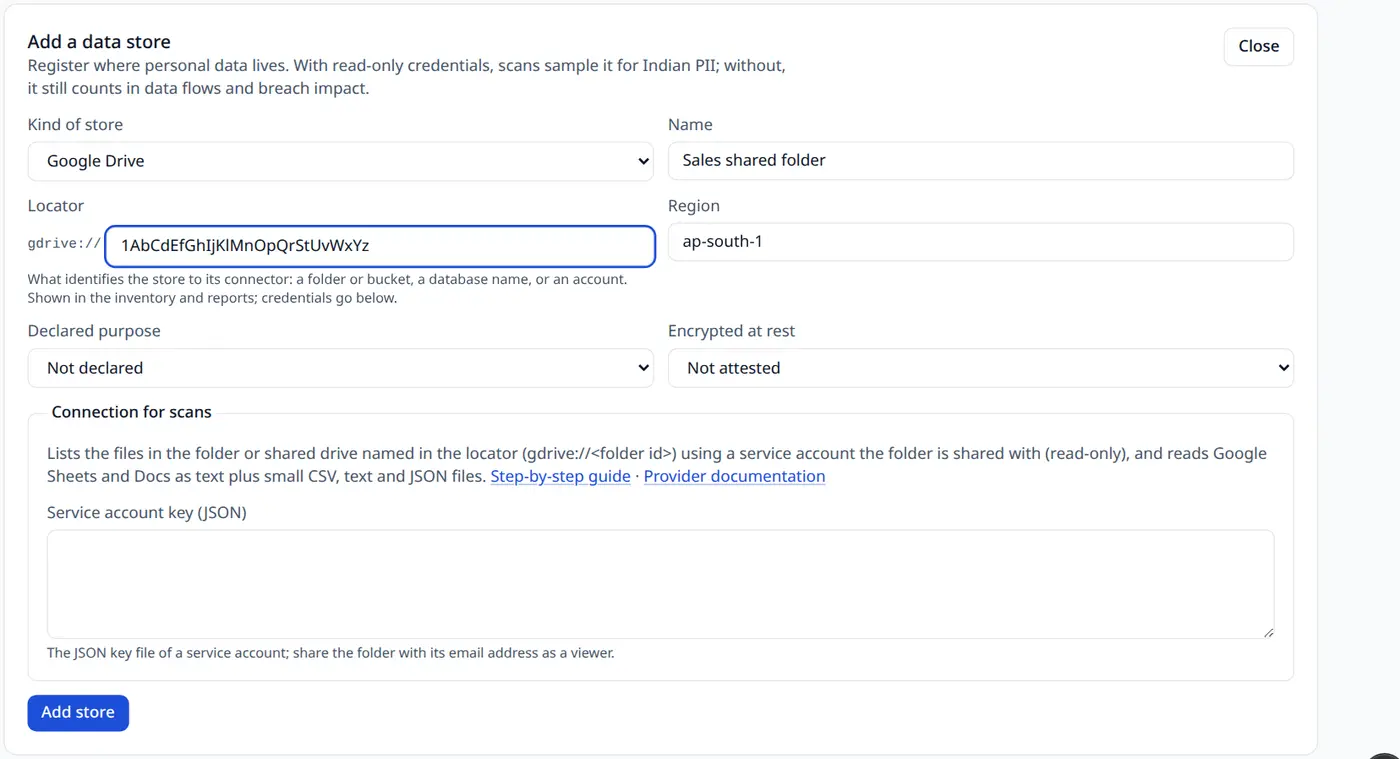
The Add data store form with Google Drive selected, showing the locator, purpose and service-account key fields
The result

What the result means.

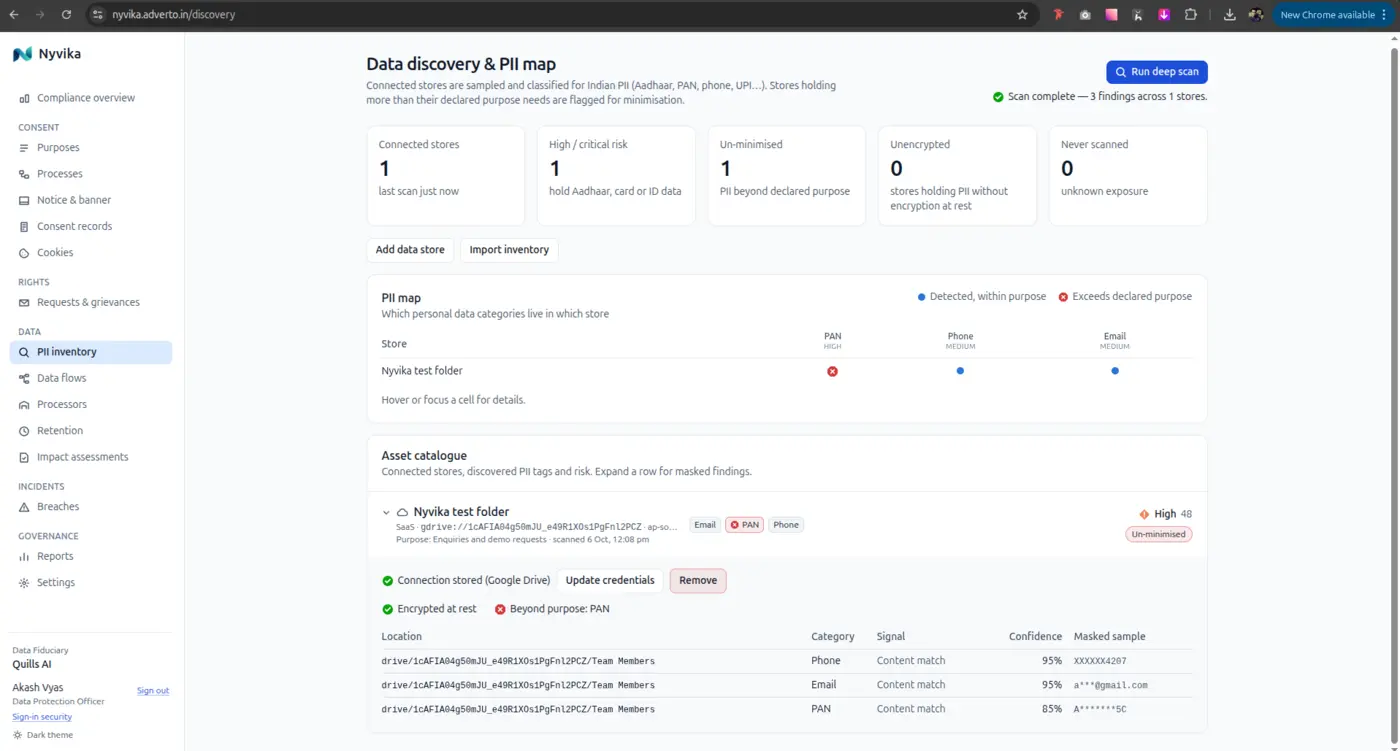
Here a test sheet in the folder held a phone number, an email address and a PAN. Each is stored masked, with the classifier's confidence. The folder's declared purpose, enquiries, doesn't need a PAN, so the store is flagged un-minimised and the PAN is marked red: either that column goes, or there is a real purpose for it that belongs on your register. That is section 8(4) and the minimisation principle, turned into a red dot.

  • Try a test folder first

    Make a folder with one Google Sheet of made-up rows (a name, a phone number, an email, a PAN) and connect that before a real one. You'll see exactly what a finding looks like in a minute.

  • Findings feed everything else

    The breach register lets you pick this store as an affected system, impact assessments can reference it, and the record-of-processing report lists it.

  • Remove or keep

    When you're done testing, press Remove on the test store so it doesn't stay in reports, or keep it as a known-clean example.

A Google Drive folder after its first scan: phone, email and PAN found, the PAN flagged as beyond the declared purpose
Limits
Questions

If something doesn't work.

Does Nyvika copy our files?

No. A scan reads a bounded sample of each file, classifies it, and keeps only the finding: which identifier types, how many, where, and a masked sample. The service-account key is encrypted on arrival and used only for scans you start.

Can we use our own Google login instead of a service account?

Not in this release. A service account suits a company drive and keeps the connection working when people leave. A personal sign-in flow is on the roadmap.

Google says access is refused.

Almost always one of two things: the Drive API isn't enabled in the project (Part A, step 2), or the folder isn't shared with the service account's email (Part B, step 1). Fix the one that applies and run the scan again.

Still stuck? Write to us with the exact error message.

Related

Where the findings go.